Friday, February 28, 2014

RapidMiner jTDS Network error: IOException: Connection refused: connect

Network error: IOException: Connection refused: connect

There a quite a number of reasons why you might get this error. However, assuming the following:
  1. You're using jTDS to connect to connect to a SQL Server instance 
  2. You're trying to use Windows authentication (not passing SQL Server credentials)
  3. You've installed the ntlmauth.dll library (link to download page). 
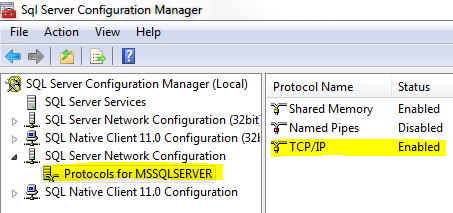
Confirm the following via the SQL Server Configuration manager (Start->Run->SQLServerManager11.msc):

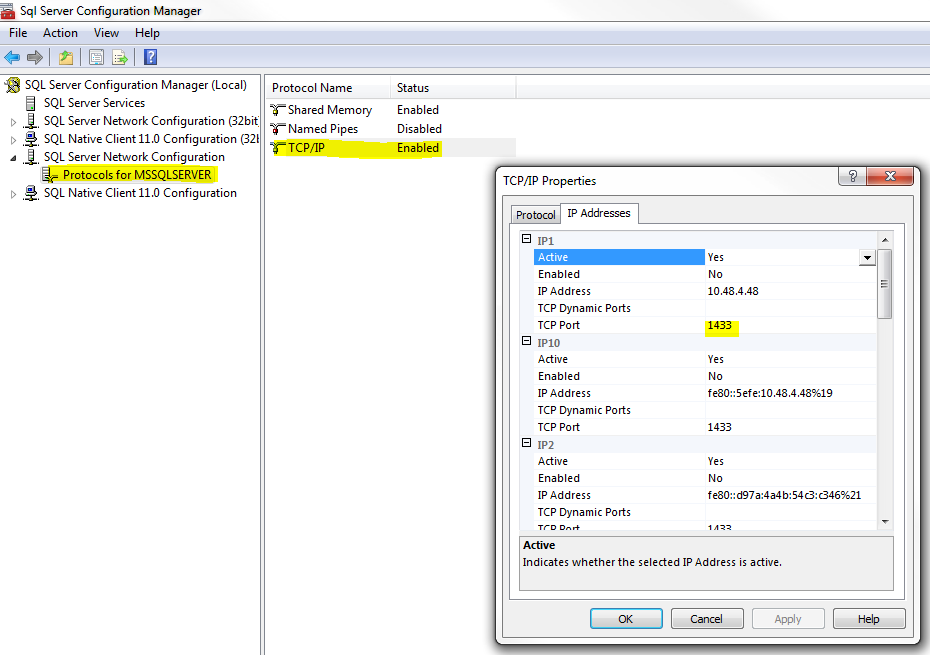
1.  The TCP/IP protocol is enabled.

2.  Your SQL Server instance is listening on the SQL Server default port of 1433 -or- you have entered the correct port in your jTDS configuration/connection string.
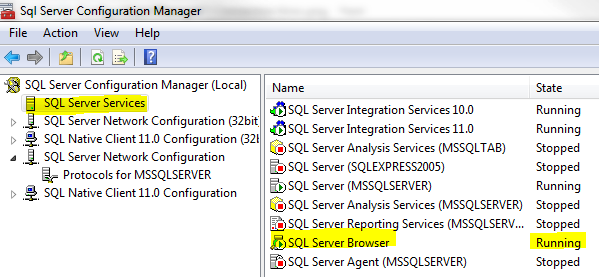
3.  The SQL Server Browser service is running.
If you confirmed and/or changed your configuration based on the above recommendations, restarted your SQL Server instance, and still cannot successfully connect, refer to the jTDS SourceForge FAQ page.

Wednesday, April 3, 2013

Connect to Analysis Services from Outside of Domain

You might find yourself in the unfortunate situation of having your SSAS server within a particular domain but your client machine in another. Since SSAS only supports Windows logins it is necessary to connect to the server using one (it is possible to connect anonymously but I am not addressing that scenario in this post). The two commands below will allow you to launch SQL Server Management Studio and Visual Studio (BIDS or SSDT) using a Windows account from a domain other than the one your client machine is currently on.

SQL Server Management Studio 2012

>runas /netonly /user:domain\username "C:\Program Files (x86)\Microsoft SQL Server\110\Tools\Binn\ManagementStudio\Ssms.exe"

Visual Studio 2010

>runas /netonly /user:domain\username "C:\Program Files (x86)\Microsoft Visual Studio 10.0\Common7\IDE\devenv.exe"

Monday, November 26, 2012

Team Foundation Service (TFS) Preview with Visual Studio 2008 (and BIDS)

It is now possible to use the Team Foundation Service Preview (Microsoft hosted TFS) with Visual Studio 2008 and BIDS (VS 2008 Shell).


1) Install Visual Studio Team System 2008 Team Explorer http://www.microsoft.com/en-us/download/details.aspx?id=16338.
2) Install Visual Studio 2008 SP1 even if it is has previously been installed http://www.microsoft.com/en-us/download/details.aspx?id=10986.
3) Install the Visual Studio 2008 SP1 Compatibility GDR for Visual Studio 2012 Team Foundation Server and Team Foundation Service Preview http://www.microsoft.com/en-us/download/details.aspx?id=29983.
4) Add your server (assuming you've already signed up for TFS preview) using the following URL: https://<yoursite>.visualstudio.com/defaultcollection.

If you receive an error stating:
TF31002 Unable to connect to this Team Foundation Server...
Possible reasons for this failure include:
-The Team Foundation Server name, port number, or protocol is incorrect.
-The Team Foundation Server is offline.
-Password is expired or incorrect.

MAKE SURE YOU ADD /defaultcollection to the end of your URL.

Wednesday, October 3, 2012

The feature: "Shared dataset" is not supported in this edition of Reporting Services. (rsOperationNotSupported)


Ouch. I was recently working on a project that started with SQL Server 2008 R2 Standard Edition and eventually ended up with SQL Server 2012 Web Edition in a hosted environment. When I attempted to stand up a staging environment on the 2012 Web Edition instance I received the following error.

The feature: "Shared dataset" is not supported in this edition of Reporting Services. (rsOperationNotSupported)

I came to find out that the "Shared component library" feature of SSRS is only available in Standard Edition and up. I have to admit that before we moved from 2008 R2 to 2012 I reviewed the Features Supported by the Editions of SQL Server 2012 MSDN page and didn't realize that the Shared Dataset feature was a subset of the Shared component library feature. It appears that this feature is also sometimes referred to as the "Report Part Gallery" as can be seen on the Programming Features for Reporting Services Editions page, also on MSDN.

Monday, August 27, 2012

Publish SSDT Projects Without Visual Studio Using SqlPackage.exe

If you'd like to publish your SSDT database project but don't have access to your target database from the machine you run Visual Studio (with SSDT) and/or you don't have Visual Studio installed on your target server you can still publish your database by using SqlPackage.exe.

For those familiar with Visual Studio Database Projects (VSDB), SqlPackage.exe is the replacement for VSDBCMD.exe

Microsoft provides a WPI (web platform installer) for the Microsoft SQL Server 2012 Data-Tier Application Framework which lays down everything required to use the SqlPackage command line utility. You can also install the individual components from the Microsoft SQL Server 2012 Feature Pack if you prefer. They consist of the following:
  1. dacframework.msi
  2. SQLDOM.msi
  3. SQLLS.msi
  4. SQLSysClrTypes.msi
Once everything is installed you should be able to find SqlPackage.exe in a location similar to "C:\Program Files (x86)\Microsoft SQL Server\110\DAC\bin."

Below is a basic sample of how to execute SqlPackage.exe.

C:\Program Files (x86)\Microsoft SQL Server\110\DAC\bin\sqlpackage.exe /a:Publish /tsn:TargetServerName /tdn:TargetDatabaseName /sf:c:\YourDacPac.dacpac

For an exhaustive list of available parameters see MSDN.

Wednesday, August 22, 2012

SSDT: unresolved reference to object [dbo].[sp_executesql].

Procedure: Some_Procedure has an unresolved reference to object [dbo].[sp_executesql].

Look familiar? There's a simple solution. We just need to add a reference to the master database.

1) Right-click the References folder in Solution Explorer.

2) Select the "master" System database.


3) Voila. The reference appears under the folder and the warning goes away.