Tuesday, May 31, 2016

Multiple Rows of Tabs/Docs in SSMS

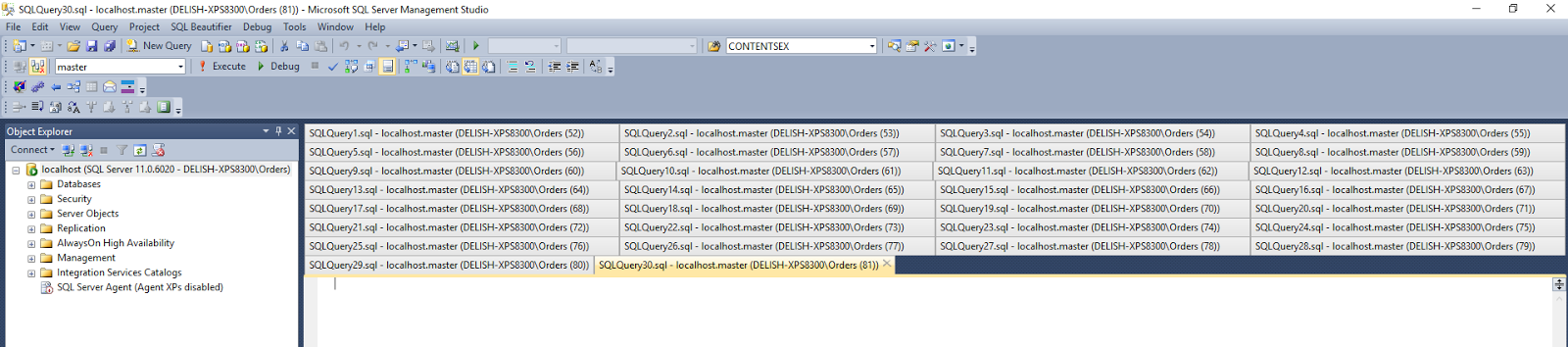
For a long time I felt like a crazy person for constantly closing documents in SSMS just because I could not easily access the documents that no longer had a visible tab. I would find myself resizing Object Explorer, maximizing SSMS, etc. to be able to see all the tabs. I'm sure I'm not the only one. In fact, Sergey Vlasov has created a Visual Studio plugin to deal with exactly this. Since SSMS is built on top of Visual Studio, the plugin works for those that also work exclusively in SSMS.

Visual Studio Gallery Link


Thank you Sergey!

Wednesday, March 5, 2014

SSIS Lookup Transformation Using Salesforce.com as a Data Source

Pragmatic Works offers a Salesforce.com Source component as part of its Task Factory SSIS component library. Using this component along with the out-of-the-box SSIS Cache Transform, it is possible to populate a Lookup Transformation with Salesforce.com data.

*Note: this post assumes you have, at a minimum, installed the trial version of the Pragmatic Works TaskFactory product.

Example scenario where this is useful: We have a data warehouse that contains customer account data. Each customer account can have a broker that is responsible for servicing the account (each account can have 0 to 1 broker and each broker can have 0 to many accounts). We want to write this data warehouse account data to a Salesforce.com Account object. The Salesforce.com Account object also has a relationship to a Broker object. In order for us to maintain this relationship in Salesforce.com, it is necessary for us to pass the Salesforce.com internal Broker Id when writing the data to Salesforce.com. Since we do not maintain the Salesforce.com Broker Id in our data warehouse me must look it up from Salesforce.com using a Broker Number that is a unique Broker identifier in our data warehouse. Since we cannot use the Salesforce.com Connection Manager in a Lookup Transformation we will use an approach that leverages the Cache Transform to allow us to have a Lookup Transformation that uses Salesforce.com data.

Let's take a look at the Control Flow of our package. 

As you can see, this simple package contains two Data Flows. The first (PopulateLookupCache) populates the Cache Transform  and the second (OleDBSourceToSalesforce) writes data to Salesforce.com . I've highlighted three of the components necessary to make this happen. The first is the PopulateLookupCache Data Flow and the second and third are Connection Managers of types CACHE and SALESFORCE.

Let's look at the PopulateLookupCache Data Flow.

This Data Flow uses the Pragmatic Works SalesForce.com Source component to retrieve data from Salesforce.com using a SOQL query and populates a Cache Transform (LookupCache) with the internal Salesforce.com Id and the external Id (BrokerNumber). Below is the Cache Connection Manager definition. Note the Index Position value of 1 for the BrokerNumber column. This means that BrokerNumber will be the column used to perform the lookup when we define our Lookup Transformation.

Now that we've populated our Cache Transform we can move on to our primary Data Flow that will perform our lookup using our cached Salesforce.com data.

In this data flow we retrieve Account data from a SQL Server database using our OleDBSource Connection Manager to write data to the Account object in Salesforce.com. In between our source and destination components we have 1) a Data Conversion transformation to convert our source system's BrokerNumber from non-unicode (VARCHAR/STR) to unicode (NVARCHAR/WSTR) and 2) our broker lookup that uses Salesforce.com data to retrieve the Account's Salesforce.com internal Broker Id using our source system's broker number.

Let's take a look at our lookup. As you can see, we're using the Cache connection manager connection type as opposed to the OLE DB connection manager connection type that we're so used to. This allows us to use the Salesforce.com data that we wrote to the Cache Transform in our previous data flow.

Next, we set the Connection to our LookupCache Connection Manager.

Once we've set our data source we can configure the lookup columns.

We join on our data warehouse BrokerNumber to retrieve the Salesforce Broker Id that we alias as Broker__c since this is the name of our Salesforce.com Account object's broker field.

As you can see from this post, using the Pragmatic Works Task Factory Salesforce.com Source component and the out-of-the-box Cache Transform component, it is possible to populate a Lookup Transformation with Salesforce.com data even though the Lookup Transformation does not directly support a Salesforce.com Connection Manager.


Friday, February 28, 2014

RapidMiner jTDS Network error: IOException: Connection refused: connect

Network error: IOException: Connection refused: connect

There a quite a number of reasons why you might get this error. However, assuming the following:
  1. You're using jTDS to connect to connect to a SQL Server instance 
  2. You're trying to use Windows authentication (not passing SQL Server credentials)
  3. You've installed the ntlmauth.dll library (link to download page). 
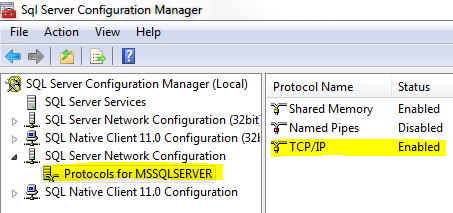
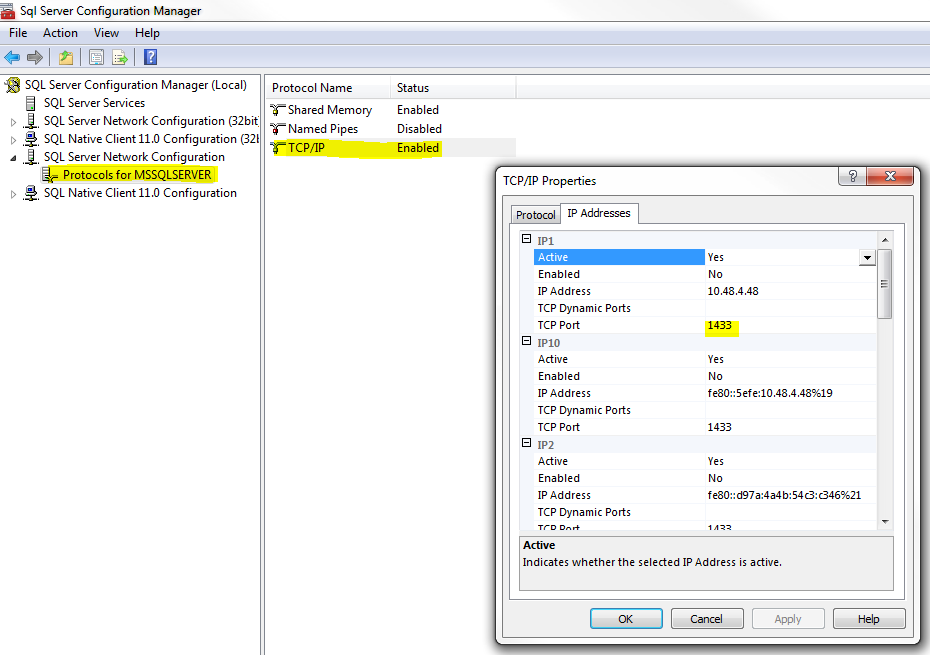
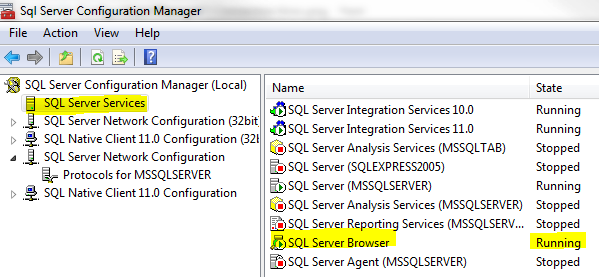
Confirm the following via the SQL Server Configuration manager (Start->Run->SQLServerManager11.msc):

1.  The TCP/IP protocol is enabled.

2.  Your SQL Server instance is listening on the SQL Server default port of 1433 -or- you have entered the correct port in your jTDS configuration/connection string.

3.  The SQL Server Browser service is running.

If you confirmed and/or changed your configuration based on the above recommendations, restarted your SQL Server instance, and still cannot successfully connect, refer to the jTDS SourceForge FAQ page.

Wednesday, April 3, 2013

Connect to Analysis Services from Outside of Domain

You might find yourself in the unfortunate situation of having your SSAS server within a particular domain but your client machine in another. Since SSAS only supports Windows logins it is necessary to connect to the server using one (it is possible to connect anonymously but I am not addressing that scenario in this post). The two commands below will allow you to launch SQL Server Management Studio and Visual Studio (BIDS or SSDT) using a Windows account from a domain other than the one your client machine is currently on.

SQL Server Management Studio 2012

>runas /netonly /user:domain\username "C:\Program Files (x86)\Microsoft SQL Server\110\Tools\Binn\ManagementStudio\Ssms.exe"

Visual Studio 2010

>runas /netonly /user:domain\username "C:\Program Files (x86)\Microsoft Visual Studio 10.0\Common7\IDE\devenv.exe"

Monday, November 26, 2012

Team Foundation Service (TFS) Preview with Visual Studio 2008 (and BIDS)

It is now possible to use the Team Foundation Service Preview (Microsoft hosted TFS) with Visual Studio 2008 and BIDS (VS 2008 Shell).


1) Install Visual Studio Team System 2008 Team Explorer http://www.microsoft.com/en-us/download/details.aspx?id=16338.
2) Install Visual Studio 2008 SP1 even if it is has previously been installed http://www.microsoft.com/en-us/download/details.aspx?id=10986.
3) Install the Visual Studio 2008 SP1 Compatibility GDR for Visual Studio 2012 Team Foundation Server and Team Foundation Service Preview http://www.microsoft.com/en-us/download/details.aspx?id=29983.
4) Add your server (assuming you've already signed up for TFS preview) using the following URL: https://<yoursite>.visualstudio.com/defaultcollection.

If you receive an error stating:
TF31002 Unable to connect to this Team Foundation Server...
Possible reasons for this failure include:
-The Team Foundation Server name, port number, or protocol is incorrect.
-The Team Foundation Server is offline.
-Password is expired or incorrect.

MAKE SURE YOU ADD /defaultcollection to the end of your URL.
Wednesday, October 3, 2012

The feature: "Shared dataset" is not supported in this edition of Reporting Services. (rsOperationNotSupported)


Ouch. I was recently working on a project that started with SQL Server 2008 R2 Standard Edition and eventually ended up with SQL Server 2012 Web Edition in a hosted environment. When I attempted to stand up a staging environment on the 2012 Web Edition instance I received the following error.

The feature: "Shared dataset" is not supported in this edition of Reporting Services. (rsOperationNotSupported)

I came to find out that the "Shared component library" feature of SSRS is only available in Standard Edition and up. I have to admit that before we moved from 2008 R2 to 2012 I reviewed the Features Supported by the Editions of SQL Server 2012 MSDN page and didn't realize that the Shared Dataset feature was a subset of the Shared component library feature. It appears that this feature is also sometimes referred to as the "Report Part Gallery" as can be seen on the Programming Features for Reporting Services Editions page, also on MSDN.